Streaming (clubs)
Broadcast-quality overlays on the club’s own YouTube channel. On the club side you mainly need a phone and the Carrom Live iOS camera app (or compatible RTMP source).
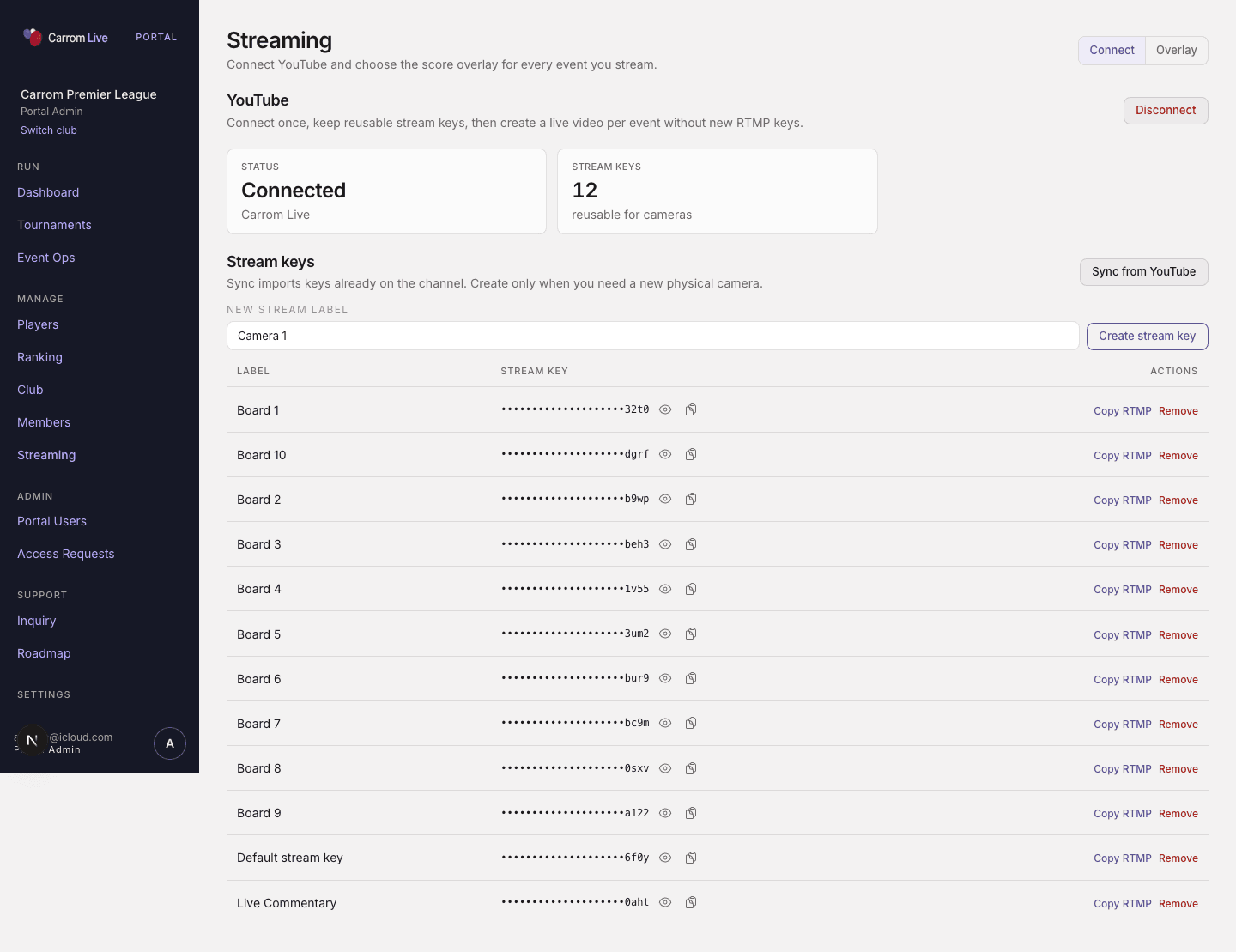
Manage → Streaming — Connect YouTube and stream keys
Club hub — Manage → Streaming
Path: /portal/streaming. Tabs: Connect · Overlay.
Connect
- Club Admin clicks Connect YouTube (OAuth). Return URL may include
?youtube=connected. - Sync from YouTube — import existing channel stream keys.
- Create stream key (label default Camera 1) — reusable RTMP keys.
- Reveal / copy stream key and ingest URL. Disconnect YouTube when needed.
- View-only roles see: “Club Admin required to connect or manage stream keys.”
Overlay
Club-level score-overlay inventory used by events.
Per-event Stream tab
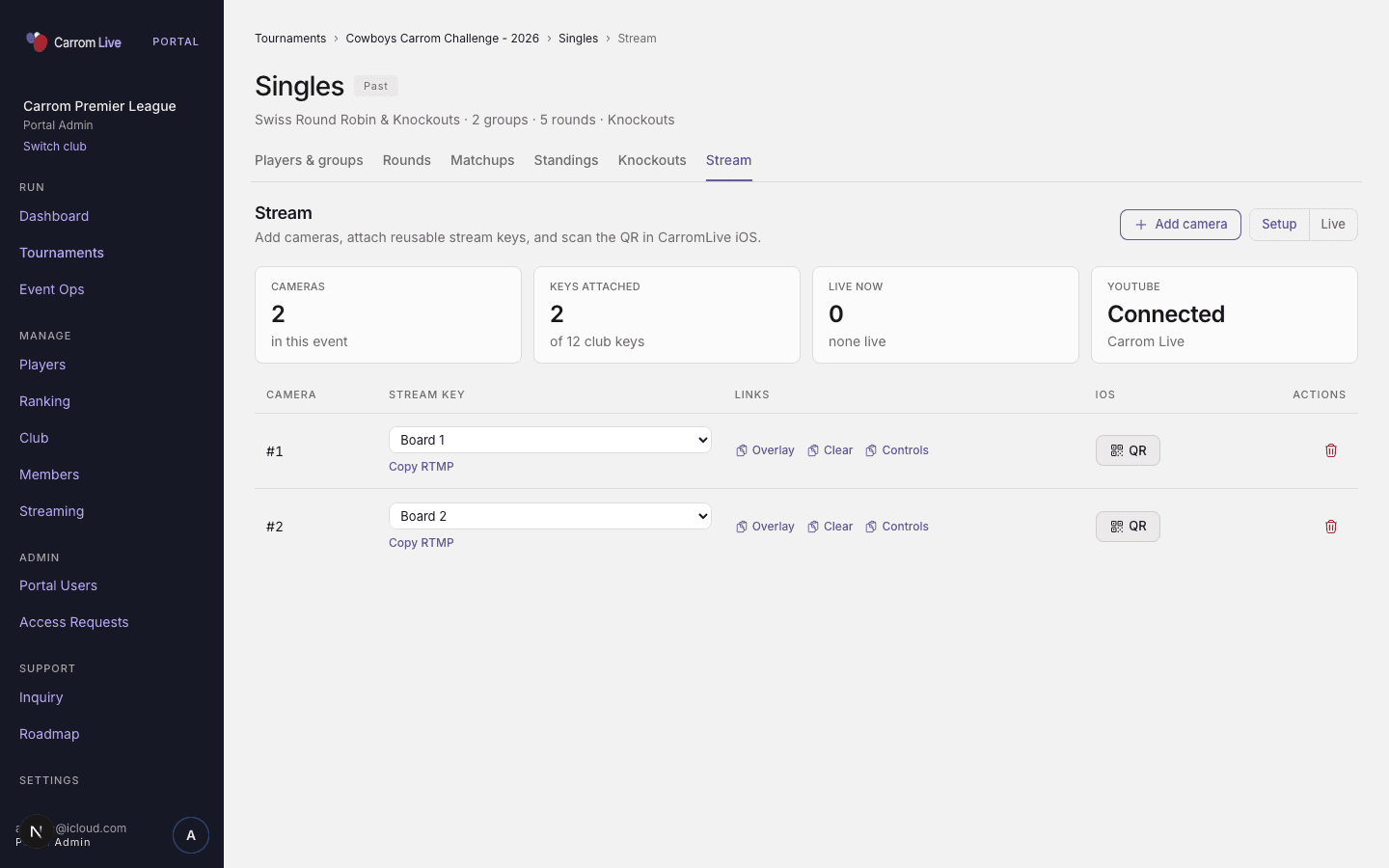
Event → Stream — Setup, Live, Add camera
Sections: Setup · Live · Add camera.
KPIs: Cameras · Keys attached · Live now · YouTube Connected / Off.
Setup
- Attach a club stream key per camera
- Copy Overlay link (chroma) / clear matte
- iOS QR for the Carrom Live camera app
- Latency: Normal (~10–60s) · Low latency (recommended) · Ultra-low latency — Low is best for live carrom
Live
- Assign matchups / venues to cameras
- Create live video (YouTube title)
- Go live now
- Reconnect YouTube if the token errors
Public overlay pattern (guides): /streaming/[eventId]/scoreboard/[scBoard] (+ /controls for operators).
Player / casual streaming
Separate from club events: players connect their YouTube under Account → Adhoc streams. See Adhoc streams.
Prerequisites checklist
- Club Admin connected YouTube on Streaming → Connect
- At least one stream key created
- Event Stream tab: key attached, overlay open, latency set
- Phone / iOS app pointed at the board; go live from Live
Last updated on